
invideo

Tool explained

What is invideo ai, and what does it actually do?

Invideo helps you turn a written idea into a video draft. This guide explains the workflow, the editing involved, and the decisions the tool cannot make for you.

Invideo video creation interface

One-line definition

4 min read

The short answer to what is invideo ai: it is a video-making workflow that uses your written instructions to assemble an editable first draft.

How it works

Think of Invideo as a starting point for production, not an automatic final cut. The useful part is how quickly you can move from a brief to something you can inspect.

Visual illustrating the start of a video creation workflow Start with a brief
01

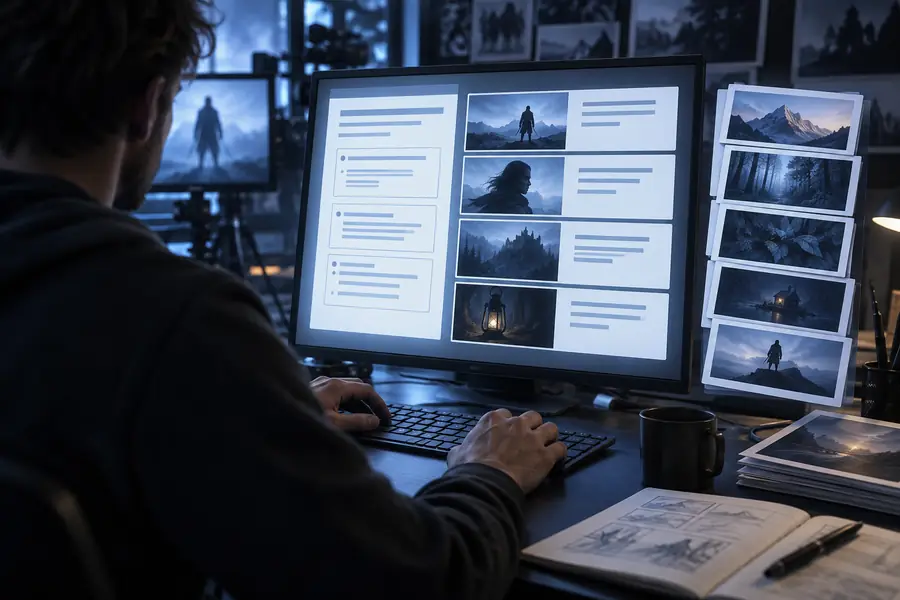
Describe the video you need

Give Invideo a concrete brief: the subject, intended viewer, approximate length, tone, and key points. “Explain composting to apartment renters in a friendly short video” gives it more direction than “make a gardening video.” Your instructions shape the draft, but they do not guarantee factual accuracy.
    Visual illustrating an assembled video draft Review the sequence
    02

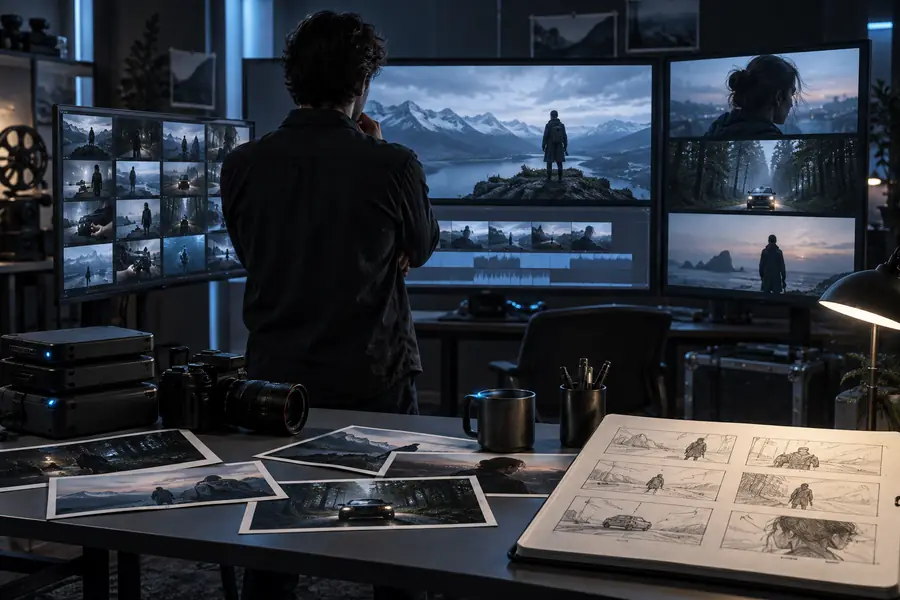
    Inspect the assembled draft

    Invideo can turn the brief into a sequence with narration, on-screen text, and supporting visuals. Watch the whole result rather than judging its opening frame. Check whether scenes match the words, captions are readable, and the pacing leaves enough time for each point.

      Visual illustrating changes to a video draft Make it yours
      03

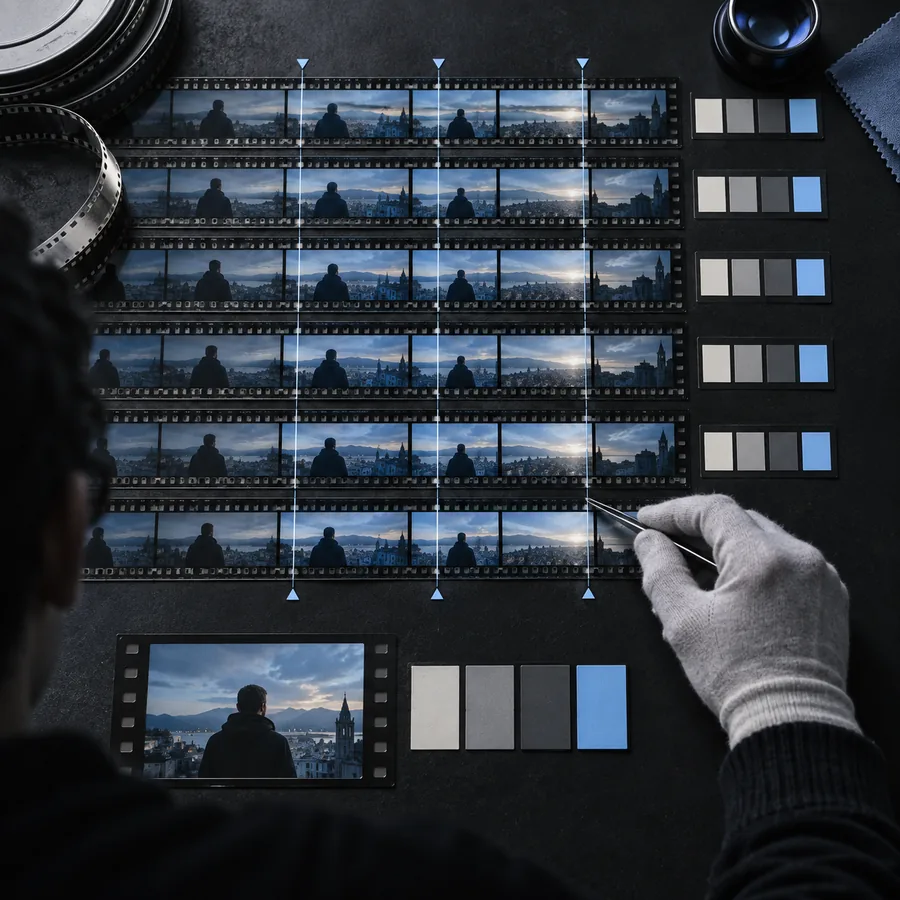
      Revise what matters

      Treat the generated version as material to refine. Rewrite vague lines, replace an unrelated visual, adjust the order, and listen for names that a voiceover may pronounce incorrectly. Invideo can shorten the path to a draft; your review makes that draft fit its purpose.

        How it works in practice

        1. 1

          Write a focused brief

          Name the audience, the main message, and the format. Add any wording that must appear exactly, but keep claims separate until you have checked their sources.

        2. 2

          Review the first cut

          Play the draft from beginning to end. Note missing points, mismatched footage, awkward transitions, and places where the script needs a clearer example.

        3. 3

          Edit and check again

          Make targeted changes, then replay the result with sound and captions on. Invideo is most useful when this final check is part of the workflow, not an afterthought.

        Explore a related workflow

        Once you understand the basic idea, choose a guide that matches the part of video-making you want to try next.

        What it can and cannot do

        The clearest comparison is between your instruction and a draft you can actually watch. Generating the second does not remove the need to judge it.

        Written instructions in a video creation interface Your brief
        Example visual output from a video workflow A video draft
        Invideo can help assemble a visual sequence from instructions; it cannot independently confirm that every image, spoken statement, or implied claim is right for your project.

        Where its limits show

        These are reasons to edit the result, not reasons to abandon a useful draft.

        It cannot fact-check for you

        A polished sentence can still contain an unsupported date, figure, or promise.

        Workaround

        Check consequential claims against reliable sources before sharing the video.

        It cannot know your exact intent

        Stock-style visuals may look plausible while showing the wrong setting, product, or action.

        Workaround

        Watch scene by scene and replace anything that could mislead a viewer.

        It cannot replace permission

        A generated draft does not establish that you may use someone’s likeness, brand, or original material.

        Workaround

        Use material you have the right to include and review sensitive references.

        Who uses it

        Start with a video idea

        Educators can sketch an explainer, small teams can draft an announcement, and creators can test a short-form concept before refining it. Invideo is a practical fit when you have a message but need help shaping the first cut. Bring a clear brief and plan to review the result.

        Try video creation
        • Describe the audience and message
        • Review the draft scene by scene
        • Edit before sharing

        Questions about Invideo AI

        People use it to turn an idea or written brief into a video draft. That can be useful for explainers, announcements, and short social videos when starting from a blank timeline feels slow. The draft still needs a check for accuracy and fit.

        You describe the video you want, and Invideo uses those instructions to put together a draft with elements such as a script, visuals, and audio. The result depends on how specific your brief is. Watch and edit it rather than assuming every choice matches your intent.

        No. A written brief gives beginners a way to start without planning every scene in advance. Basic editing judgment still helps: you should check the pacing, wording, captions, and visual choices before sharing.

        It can help create a first version from your instructions, but “finished” depends on your audience and purpose. You remain responsible for checking claims, permissions, and whether the video communicates the intended message. A careful final review is part of making it ready to share.

        Start creating
        Start creating