
invideo

Try invideo online free with a simple video idea

Use Invideo in a browser to turn a short idea into a video draft. This guide walks through what to prepare, how to review the result, and what to check before exporting.

Check export conditions before sharing
Invideo video creation preview

Prerequisites

Start with a small, specific idea. A clear subject and intended audience make the first Invideo draft easier to assess.

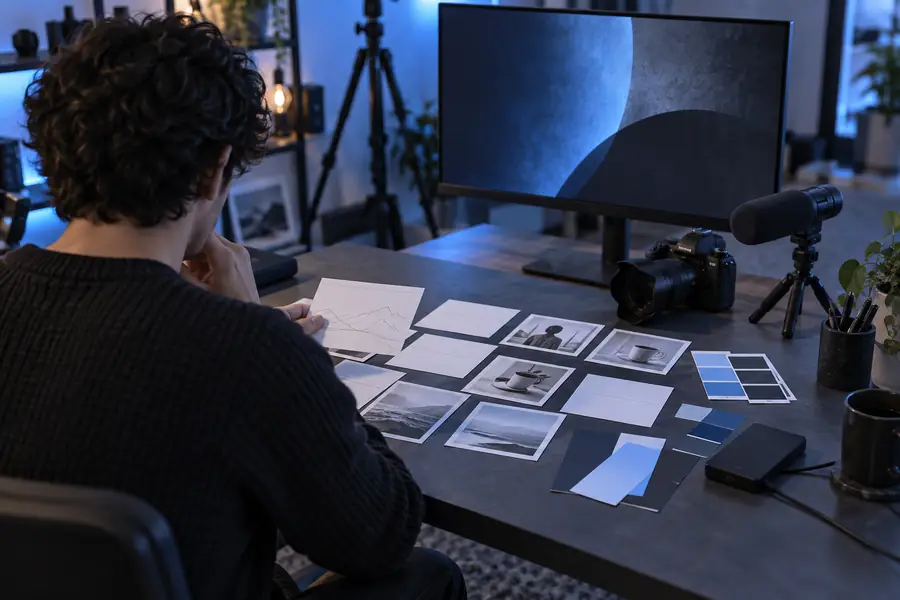
An initial video idea before a draft is assembled Your idea
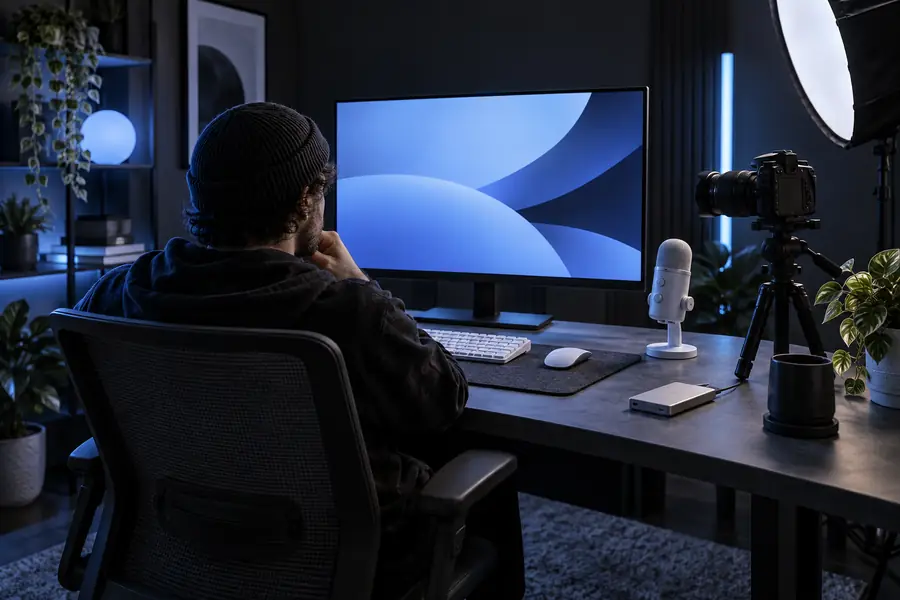
A visual preview of an assembled video draft A draft to review
Treat the first result as a starting point, not a finished video. Check every scene, caption, and claim against your original brief.

One full run-through

The same short brief can lead to different editing tasks. Compare a prompt-led draft with a hands-on browser edit before choosing your next step.

Prompt-led draft
Hands-on browser edit

Starting material

Prompt-led draft

A written description of the video

Hands-on browser edit

Clips, images, text, or an existing draft

First action

Prompt-led draft

Describe the audience, format, and message

Hands-on browser edit

Arrange source material into a sequence

Initial result

Prompt-led draft

A draft whose choices need review

Hands-on browser edit

A sequence shaped by your own selections

Best first check

Prompt-led draft

Does the story match the prompt?

Hands-on browser edit

Does the timing feel right?

Likely revision

Prompt-led draft

Replace unsuitable visuals or wording

Hands-on browser edit

Trim clips and adjust text placement

Before sharing

Prompt-led draft

Verify captions, media, and export conditions

Hands-on browser edit

Verify captions, media, and export conditions

Options table

Choose the route that matches the material you already have. Invideo can help you start with an idea, but a reviewable brief matters whichever route you take.

First-time creator

You have a topic but no prepared clips. Write one sentence about the audience, one about the message, and one about the desired format.

A narrower brief gives you a draft you can judge against a clear goal.

how to use invideo for beginners

Writer with a finished script

You want the spoken or on-screen wording to follow a prepared text rather than a broad topic.

Check the generated scenes against the script line by line before changing the visuals.

invideo io text to video

Hands-on editor

You already have media and want direct control over clip order, pacing, and captions.

Use the draft as a rough cut, then inspect each transition and text placement.

invideo online video editor

What fails

Most disappointing first drafts have a brief that is too broad or a review that stops at the preview.

  1. 1

    Narrow the request

    Replace “make a business video” with a subject, audience, length, format, and one intended takeaway. Invideo needs those details to make choices you can evaluate.

  2. 2

    Inspect the whole draft

    Watch from beginning to end. Look for irrelevant imagery, awkward cuts, incorrect names, unsupported claims, and captions that are difficult to read.

  3. 3

    Revise before export

    Change the specific scene or line that misses the brief instead of repeatedly restarting. Preview again after edits, especially on a phone-sized screen.

Browser access checklist

A little preparation prevents an interrupted editing session. Keep source files and wording close by, even if you plan to begin with a prompt.

You must have

Without every one of these the route does not run.

  • A browser with a stable internet connection

    Invideo runs online, so an interrupted connection can disrupt the workflow.

  • A specific subject, audience, and intended format

    These give you a practical standard for reviewing the first draft.

  • Permission to use any media or music you provide

    Check rights before adding files you did not create.

Nice to have

Skip any of these and the route still works — they only make it faster.

  • A prepared script or brand wording

    Useful when exact phrasing matters.

  • A second device for a final viewing check

    Helpful for spotting small captions or poorly framed vertical scenes.

Preview and export are different checks

A good-looking preview does not by itself establish which download options are available. Check the current conditions shown in the tool before committing to a final version.

Video scene preview for reviewing story and visuals
01

Review the story while changes are easy

Play the Invideo draft as a viewer would. If the opening does not establish the subject quickly, fix that first; a polished ending cannot rescue an unclear introduction. Confirm that visuals support the narration rather than merely filling time.

  • Check names and factual statements
  • Read captions at their displayed size
  • Watch the pacing without stopping
Video editing workspace used to review the final result
02

Check the final output conditions

Before you rely on invideo online free for a project, inspect the export screen for any applicable limits or marks. Available options can change, so do not assume the preview and downloaded file will have identical conditions. Save a copy of your wording and source material in case you need another route.

  • Inspect the available export choices
  • Verify the downloaded file before sharing
  • Keep the original brief for later revisions

Make a draft you can improve

Start with one clear video brief

Tell Invideo what the video is about, who should watch it, and what they should remember. Generate a draft, then review the complete story and the current export conditions before sharing it.

Create video draft
  • Begin with a specific prompt
  • Revise scenes that miss the brief
  • Check the final file

FAQ

Invideo is designed for online video creation, so you can begin from a browser with a prompt or source material. Check the current tool screen for any access requirements before starting a longer project.

Name the subject, audience, approximate length, format, and tone. Add the main point viewers should take away, then review whether the draft actually delivers it.

Not necessarily. A preview shows what you can review in the editor; check the current export screen for the conditions that apply to the downloaded file.

Use the available editing controls to review and revise the draft rather than accepting the first result unchanged. Check scene choices, captions, timing, and factual claims before exporting.

Identify the first specific mismatch, such as an off-topic scene or the wrong tone, and revise the brief or that part of the draft. Keeping your original wording nearby makes it easier to compare the result with what you intended.

Start creating
Start creating